



Press left, right, middle and both side buttons inside the test area. Each zone lights up red when the input registers, and its counter increases.

Mouse Button Test
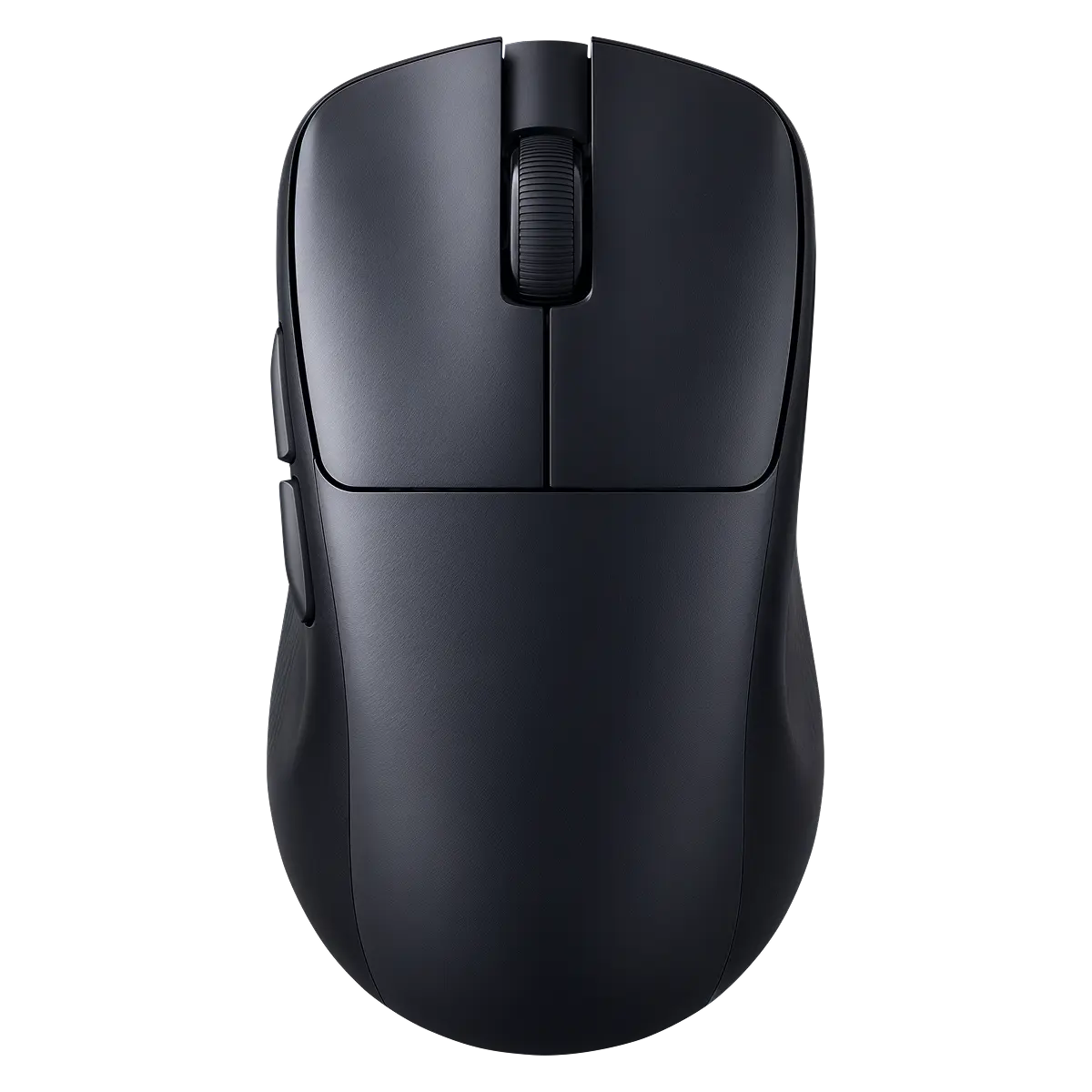
0 MS FAULT
50
80
NORMAL
Click each button a few times. If a single press ever registers twice within 50 ms, it will be flagged here as a suspected double-click fault.
Press / release
Press / release
Press / release
Press / release
Press / release
each scroll
additional buttons
current action
⸻
No results
How to test your mouse
01
Click each button
02
Roll the scroll wheel
Scroll up and down over the mouse diagram. The arrows confirm each encoder step — skipped or reversed steps point to a dirty or worn encoder.
03
Watch the interval
The "Last Interval" reading shows the milliseconds between clicks. Anything under 50 ms from a single press is flagged as a suspected switch fault automatically.
04
Check polling rate
Move the cursor quickly inside the test area in circles. The live Hz reading approximates your mouse's polling rate — 125, 500, 1000 Hz or higher.
faq
-
How Can I Check if My Mouse Is Double-Clicking?
Press the same mouse button several times with separate clicks. If one physical press is registered twice within 50 ms, the tester flags it as a suspected double-click fault.
-
How Do I Test the Middle Mouse Button?
Press the scroll wheel as a button and check the Middle Click [MB] field. Each successful press and release should be registered by the tester.
-
What Are Mouse Buttons 4 and 5 Used For?
Mouse buttons 4 and 5 are usually the side buttons used for Back and Forward actions in browsers. In CS2, they can also be bound to specific actions, such as selecting individual grenades.
About
Why Use a Mouse Button Test
A mouse button test checks whether the main buttons, side buttons, and scroll wheel register presses and releases correctly. It’s useful when a button sometimes fails to respond, registers one press twice, or produces inconsistent click intervals. The tool records each action and can flag a suspected double-click fault when a single press is registered twice within 50 ms. It also shows click timing, total presses, rapid clicks, pointer position, and recent input history, which makes it easier to identify whether the problem comes from a specific mouse button.
How to Use
Click each mouse button several times and use the scroll wheel in both directions. The corresponding field shows each press and release, while the statistics below record click intervals, total presses, double clicks, rapid clicks, and other detected inputs. If a single physical press is registered twice within 50 ms, the tool marks it as a suspected double-click fault. The action history at the bottom can be used to compare individual inputs and their timing.
Indicator | What It Shows |
|---|---|
Left Click [LB] | Registers presses and releases of the left mouse button. |
Right Click [RB] | Registers presses and releases of the right mouse button. |
Middle Click [MB] | Registers presses and releases of the scroll wheel button. |
Forward Click [5B] | Registers input from mouse button 5. |
Back Click [4B] | Registers input from mouse button 4. |
Scroll ↑↓ | Registers upward and downward scroll wheel movement. |
Last Click Interval | Shows the time between the latest registered clicks. |
Total Presses | Shows the total number of recorded button presses. |
Click Interval | Shows the interval between registered clicks. |
Pointer Position | Shows the current pointer coordinates. |
1S CPS | Shows clicks per second measured over one second. |
Double Clicks | Shows detected double-click events. |
2X Anomaly | Shows suspected duplicate registrations from a single press. |
Rapid Clicks | Shows rapidly repeated click inputs. |
Peak, Hz | Shows the highest recorded click frequency. |
Current Action | Shows the input currently being registered. |
History | Records recent actions together with their intervals and timestamps. |